How to create and link pages, 1
This section will show you, using a simple step-by-step procedure, how to create and link pages.
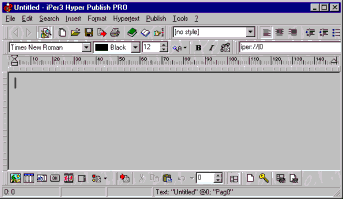
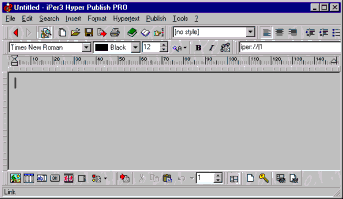
When you run EasyWebEditor from the “Start” menu, the software opens the last edited file, or shows a new site/hypertext document. To create a new hypertext, choose “File >New”.
As you can see, the toolbars are very similar to MS Word ones. For the moment, just notice that the white cell at the bottom of the window shows the page number, “0”. As EasyWebEditor manages a whole page set, each page has a name and a number: the name is under the cell (”Untitled”).
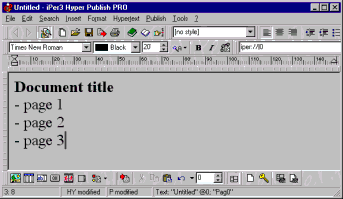
Now let’s write a document that points to some different pages. First, we enter some “dummy” text...
...then we will place a link to the page “Page 1”. This page doesn’t exists, but we don’t need to create it directly (though it is possible, with “File >Add new page...”), as a page creation can be done simultaneously with a link definition.
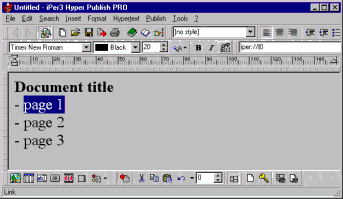
Now we will see how. First, let’s select the text block to be linked...
...then, let’s press the link button in the toolbar (the one with a sheet and a chain, or “Insert >Link” from the main menu).
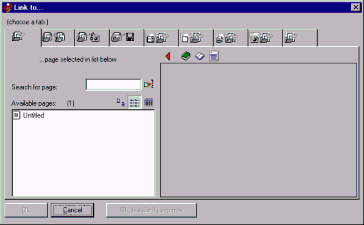
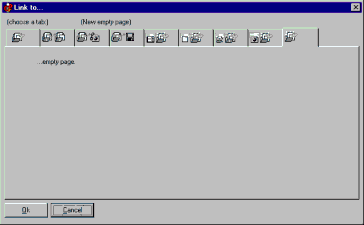
The following window will appear:
In this window EasyWebEditor lists all the pages found in the current site/hypertext. So, for the moment, we have only one page. As we want to link to a new page (that will be “Page 1”), we have to choose the last tab (”link to a new empty page”):
Let’s press OK.
What’s happened? EasyWebEditor has created a new page, the page #1 (as you can see from the white box in the bottom of the window). We can give this page a name, we can select a background, and so on, with “Format >Page properties”.
|
Other good VisualVision software:
EasyWebEditor the productive web site builder is available also in other languages:
|