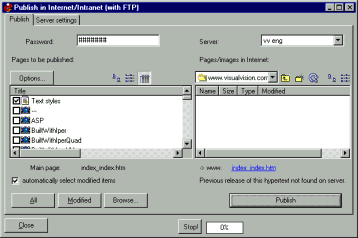
Internet FTP publishing, 2
Now let’s see how to publish our site/hypertext. In this example we are using the hypertext created in “
Create and link pages” tutorial.
To publish, click on “Publish >Internet - FTP >Publish on the Internet...”.
The software tries to connect with the last used site (if you’ve not done the
FTP setup, it will try to connect with a dummy one, called “default”).
If you manage different sites, you can choose one from the top right combo box. To set up configuration parameters, use the “Server settings” tab as shown above. When the connection is OK, the directory of the server is listed on the right box. Use the “Stop” button to stop connection tries (you may have to press it twice).
If the “connection impossible” label appears, you may have used the wrong password, or the wrong parameters. You can correct them using the "Server settings” tab. Or maybe the server is down (in which case you should retry later); or you should disable or configure your firewall.
When you press the “Publish” button, the whole site is published into the selected directory.
The dialog shows on the left side the HTML/GIF files automatically created by the editor, and on the right the "Initial remote directory" on the server (note that on some servers you should enter a subdirectory before publishing; this has to be configured as "Initial remote directory"; ask to your provider if you are unsure; for some suggestions
click here...).
EasyWebEditor automatically detects modified pages. So if your site has 100 pages and you just modify ten, then only ten are published. Just after you’re connected, EasyWebEditor does a version control: the modified page items are marked in the left box. You can also manually manage them: only marked items are published by the “Publish” button. The auto-detect can also be disabled.
|
Other great VisualVision software:
EasyWebEditor, the productive web site builder software, is available also in other languages:
|